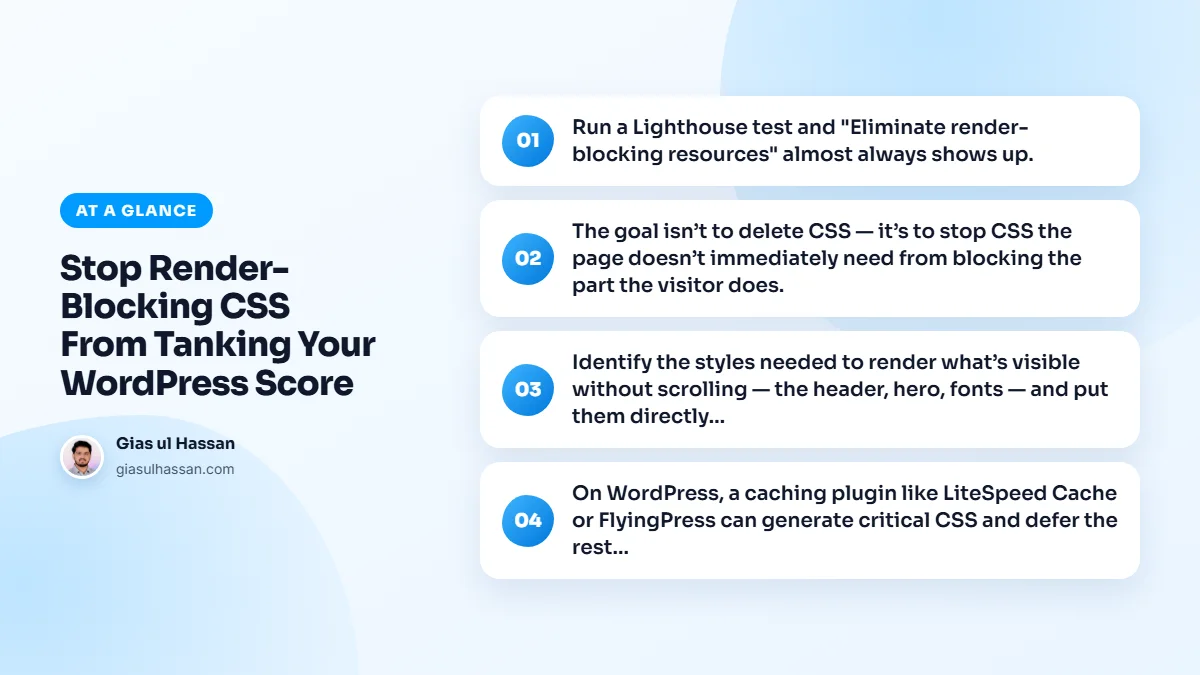
Run a Lighthouse test and "Eliminate render-blocking resources" almost always shows up. It means the browser hit a stylesheet in the <head>, stopped, and waited to download and parse all of it before painting a single pixel. On a typical WordPress site with five plugins, that’s a dozen CSS files blocking the first paint, and render-blocking CSS is often the single biggest thing between WordPress and a green score.
The goal isn’t to delete CSS. It’s to stop CSS the page doesn’t immediately need from blocking the part the visitor does. Two techniques do most of the work.
Why render-blocking CSS hurts a WordPress score
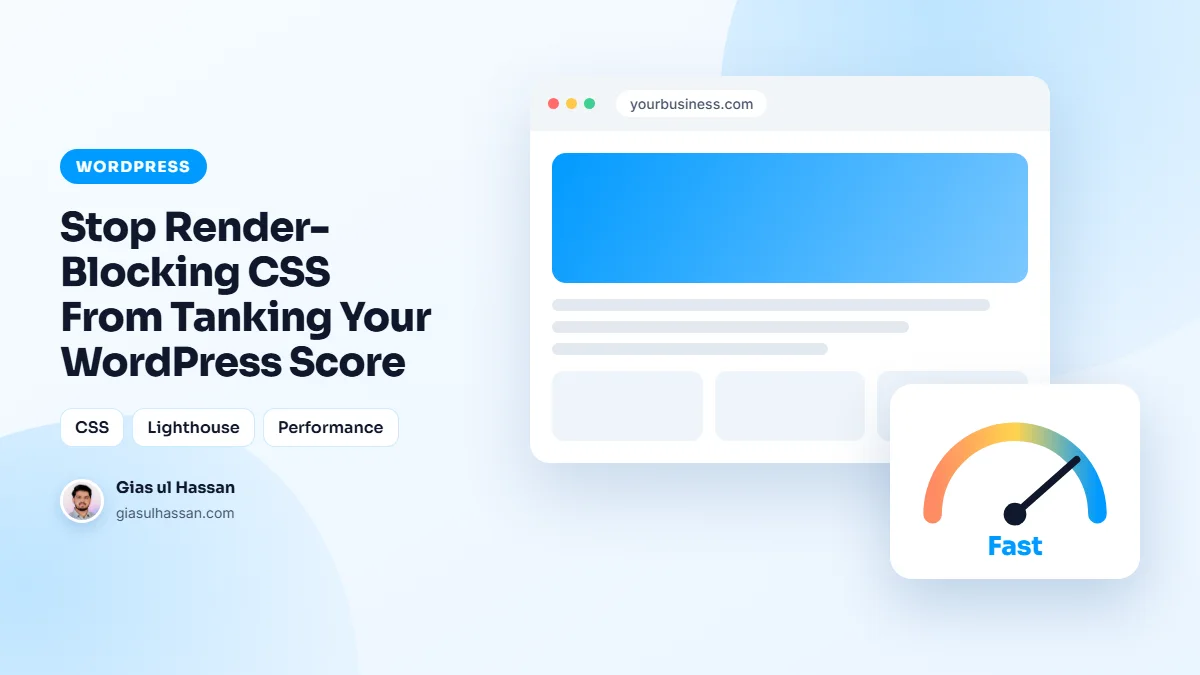
A browser won’t paint anything until it knows how the page should look, so every normal stylesheet in the head has to arrive first. That is sensible behaviour: painting unstyled content and then restyling it would look broken. The cost is that every extra file is another request the first paint waits for.
On a phone with a slow connection, those waits add up. They push back First Contentful Paint and, usually, Largest Contentful Paint too, which is why Lighthouse puts this warning near the top.
WordPress makes the problem easy to create. The theme, the block editor and every plugin can add their own stylesheet to the head of every page. Nobody decides to load twelve files; they just accumulate.
Find out which stylesheets are blocking
- Run Lighthouse or PageSpeed Insights and open the render-blocking diagnostic. It lists each blocking file and an estimate of the time it costs.
- Open the Coverage panel in Chrome DevTools and reload. It shows how much of each stylesheet the page actually used.
- View the page source and look at the stylesheet links. WordPress gives each one an id ending in
-css, and the part before that is the handle you need to remove it.
Do this on two or three different templates: the homepage, a service page and a blog post. A stylesheet that is essential on one may be dead weight on the others.
Inline the critical CSS
Identify the styles needed to render what’s visible without scrolling (the header, hero, fonts) and put them directly in the head as a small <style> block. The above-the-fold view now paints instantly with no external request. Then load the rest asynchronously so it doesn’t block; the full stylesheet still loads, just after the first paint.
A common hand-written pattern for the second half is <link rel="stylesheet" href="main.css" media="print" onload="this.media='all'">. A stylesheet marked for print doesn’t block the screen, and the small script switches it on once it has loaded.
Keep the critical block small, and regenerate it when the design changes. If it misses a style the first screen needs, visitors see a flash of unstyled content and the layout can jump.
Question every stylesheet
On WordPress, a caching plugin like LiteSpeed Cache or FlyingPress can generate critical CSS and defer the rest automatically. If you hand-code the theme, you control the head directly, which is cleaner.
Plugins love to enqueue their CSS on every page even when their feature isn’t used. Dequeue those on pages that don’t need them. Fewer blocking files plus inlined critical CSS is usually the difference between a yellow score and a green one.
In a theme or a small custom plugin, that looks like this, using wp_dequeue_style:
add_action( 'wp_enqueue_scripts', function () { if ( ! is_page( 'contact' ) ) { wp_dequeue_style( 'contact-form-7' ); }}, 100 );
The late priority makes sure your code runs after the plugin has added its file. Swap in the handle you found in the page source and the condition that fits your site.
Page builders and third-party widgets
Builders add their own layer of CSS, and it grows with every edit. If you run Elementor, the settings that matter here are covered in why Elementor sites become slow after six months.
Chat widgets are another frequent offender: many inject a stylesheet and script on every page before the visitor has shown any interest. Load them after interaction instead. A chatbot that slows the page is off to a bad start, which is part of why most website chatbots annoy customers. The same goes for any AI assistant you add, so read what an AI agent actually is, and when your business needs one before bolting one onto the head of every page.
Mistakes that undo the work
- Combining everything into one file. One giant stylesheet still blocks rendering, and the browser has to download all of it before the first paint.
- Deferring all CSS with no critical block. The page paints unstyled, then snaps into place, which trades a speed warning for layout shift.
- Treating minification as the fix. Smaller files help a little, but a minified blocking file is still blocking.
- Removing a stylesheet without checking every template. Click through forms, menus and popups on mobile and desktop after each change.
If you would rather have the head of your site cleaned up properly, with every change tested, you can hire a WordPress developer for exactly this kind of work.