Most WordPress speed advice is a list of plugins. If you want to speed up WordPress for real, this is the actual process: the same order of operations I run on client sites, where the typical result is a 6-second load dropping to under 2. Work through it top to bottom, because the order matters: fixing caching before fixing images is polishing a car with a flat tire.
Speed is not a plugin you install. It is weight you remove.
Step 1: Measure before you touch anything
Run your homepage and your most important inner page through PageSpeed Insights and note three numbers: LCP (how fast the main content appears), CLS (how much the layout jumps), and total page weight. These are your before photos. Without them, you cannot tell which fixes worked, and half of them won’t apply to your site.
If those metric names are new, read Core Web Vitals explained in plain English first. It takes five minutes and makes every step below easier to judge. Test the mobile result, not just desktop, because that is the score Google uses and the one most of your visitors experience.
Step 2: Fix images, the biggest win on 90% of sites
Images are usually 60 to 80% of a slow page’s weight. Three fixes, in order:
Serve modern formats
Convert JPG and PNG to WebP. The quality is indistinguishable and files shrink 25 to 40%. WordPress supports WebP natively now; older uploads need converting.
Size images to their containers
A 2400px photo displayed at 400px wide wastes every byte past 400. Set proper sizes and let WordPress’s srcset serve smaller versions to phones.
Lazy-load below the fold, and only below
Everything the visitor can’t see yet should wait. But never lazy-load your hero image; that delays LCP, which is the score Google weighs most.
Step 3: Cut the code you’re not using
Every plugin loads its CSS and JavaScript on every page by default, whether the page uses it or not. Audit your plugin list ruthlessly, deactivate anything you added "to test" and never removed. Then look at your theme: page builders like Elementor ship megabytes of CSS for widgets you never touch. If you’re stuck on a builder, enable its optimized asset loading; if you’re rebuilding, a hand-coded theme skips the problem entirely.
Step 4: Get caching right, once
Caching means the server hands visitors a saved copy of the page instead of rebuilding it every time. You need exactly one caching layer, configured properly. On LiteSpeed servers (most Hostinger plans), that’s LiteSpeed Cache. It works at the server level and outperforms plugin-only caching. Stacking a second caching plugin on top doesn’t double the speed; it causes conflicts. Enable page caching, browser caching, and CSS/JS minification, then stop.
Step 5: Fonts and third-party scripts
Each font family and weight is a download that blocks text from rendering. Two families, three weights total, is plenty. Preload your primary font and use font-display: swap so text shows immediately. Then open your site with the network tab and look at third-party scripts: chat widgets, tracking pixels, embedded maps. Each one is someone else’s slow server on your page. Keep the ones earning their weight; delay or drop the rest.
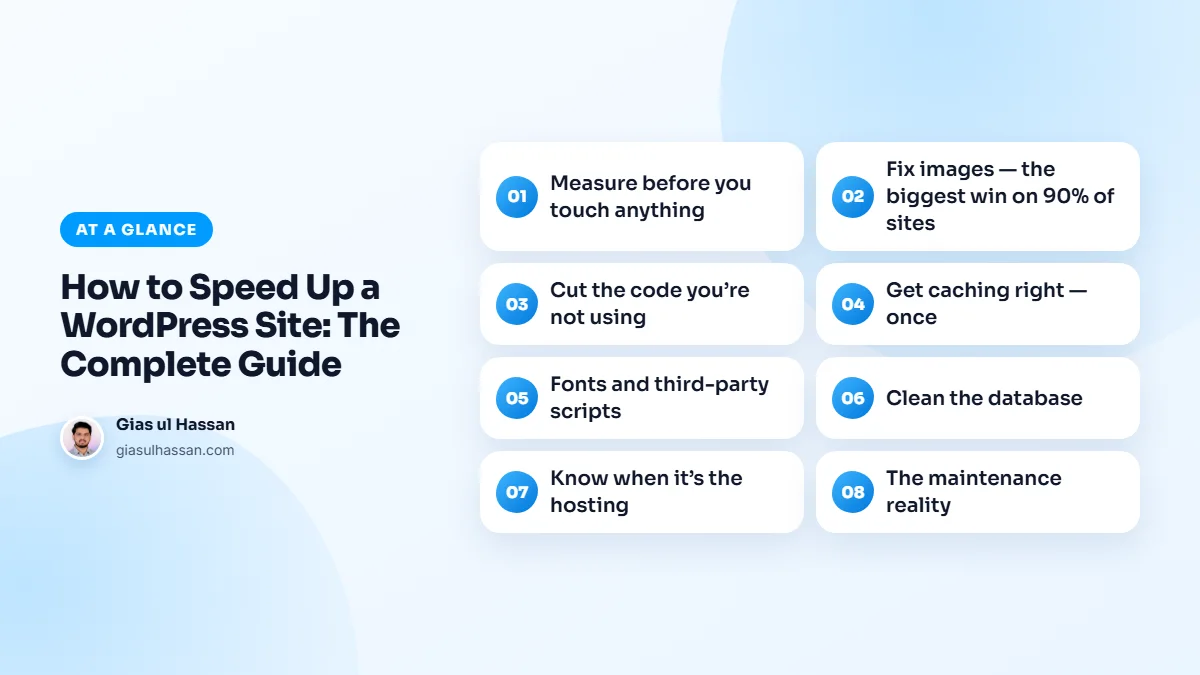
Step 6: Clean the database
Years of post revisions, expired transients, and autoloaded options from deleted plugins add drag to every page WordPress builds. Clean revisions and transients, and check your autoloaded data size, over ~1MB of autoloaded options is a red flag worth investigating.
Take a full backup before any database cleanup. A cleanup tool that removes the wrong rows can break a plugin’s settings, and a backup turns that into a five-minute restore instead of a long evening.
Step 7: Know when it’s the hosting
If your TTFB (time to first byte) stays above 800ms after all of the above, the server itself is the bottleneck and no amount of optimization on top will fix it. That threshold matches the guidance in web.dev’s TTFB article. Good LiteSpeed hosting starts cheap; moving is a smaller job than people fear.
If a move to new hosting turns into a new theme or new URLs, treat it as a redesign. My guide to redesigning a website without losing SEO covers the redirects and checks that keep your rankings intact.
How to speed up WordPress in the right order
Here is the whole process on one screen, for when you come back to it:
- Measure LCP, CLS and page weight on two key pages.
- Convert, resize and lazy-load images, except the hero.
- Remove unused plugins and heavy builder assets.
- Set up one caching layer, properly.
- Trim fonts and third-party scripts.
- Back up, then clean the database.
- Check TTFB and change hosting if the server is the limit.
Check that each fix worked
Re-run the same two pages in PageSpeed Insights after each step and compare against your before numbers. If a change made no difference, undo it rather than leaving it in place. After minifying or combining files, click through the site on a phone, because those settings occasionally break a menu or a form.
Common mistakes that undo the work
- Testing only the homepage. Product, service and blog pages often carry different plugins and heavier images.
- Installing a plugin for every problem. Each optimization plugin is more code to load. Fix the cause where you can.
- Working on the live site. Make bigger changes on a staging copy first, then push them live.
- Forgetting to clear the cache. After changes, purge the cache before you measure, or you are testing the old page.
The maintenance reality
Speed decays. New plugins, new images, new tracking scripts, six months of normal use undoes an optimization pass. Re-measure quarterly, or put the site on monthly maintenance where performance checks are part of the routine. My website maintenance checklist shows where those checks fit alongside updates and backups.
If you’d rather hand the whole checklist to someone who does this weekly: my WordPress speed optimization service starts at $199 with a measured before/after report. For bigger WordPress work beyond speed, you can also hire me as your WordPress developer.